Recipients
This section provides reference and background information for handling recipients in the Flex Client Notification. For related procedures, see the step-by-step section.
Recipients User Workspace
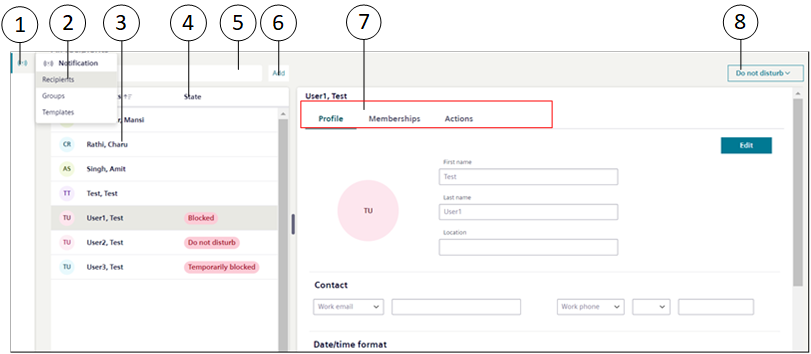
Item | Name | Description |
1 | Notification | Displays the list of following Notification objects:
|
2 | Recipients (workspace) | Displays general information workspace for the recipient. |
3 | Recipients (column) | Displays the list of recipients in the recipient column with their state. |
4 | State | (Applicable only for Reno Plus users) Displays the recipient state in front of the recipient name. Following is the list of all the recipient states:
|
5 | Search | Search for a particular recipient or recipients either from the name or state. |
6 | Add | Adds a new recipient to the system. |
7 | Recipient details setting tabs | Allows you to add, edit, block, or delete the recipient information using different tabs. |
8 | Do not disturb | (Applicable only for Reno Plus users) Sets the recipient state to Do not disturb mode from the time options available from the Do not disturb drop-down. You can customize the date and time using Customize option. See Set Recipient State in Creating and Managing Recipients. |
Customize Option
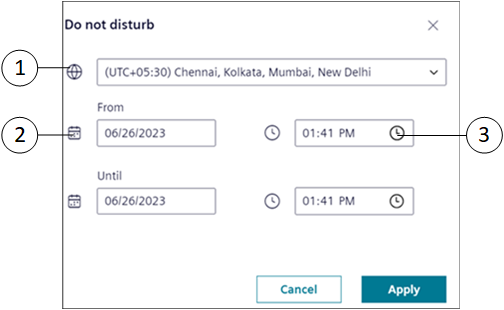
Item | Name | Description |
1 | Time zone | Select the specific time zone. Time zone is a local time of the region or the country of the recipient. |
2 | Calendar | Select the start and end date for the mode. |
3 | Time | Select the start and end time for the mode. |
General Information
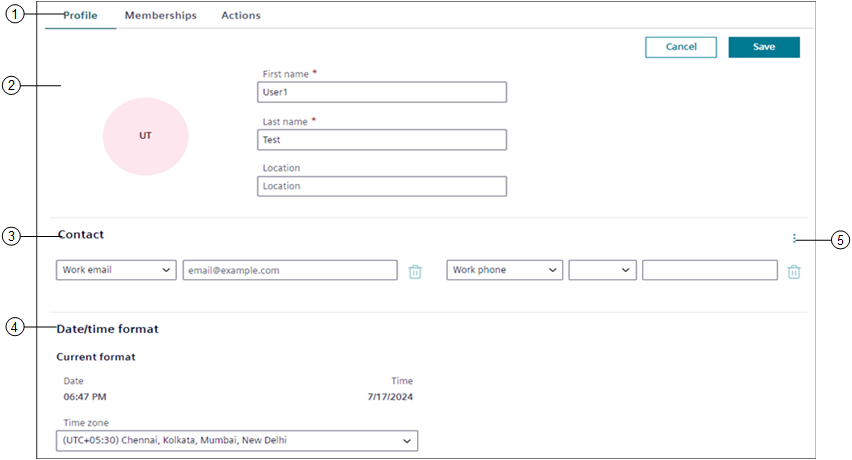
Item | Name | Description |
1 | Profile | Allows you to add, edit, or view the general information. It has the following sections:
See Add Recipient in Creating and Managing Recipients |
2 | User profile | Allows you to add or edit the first name, last name and the location of the recipient. |
3 | Contact | Allows you to add or edit the work or private email, phone number, or pager number of the recipient. Click to delete any specific entry. |
4 | Date/time format settings | (Applicable only for Reno Plus users) Allows you to set the specific time zone. Time zone is the local time of the region or the country of the recipient. Displays the current date and time according to the selected time zone. |
5 | | Displays Add email and Add phone options. Recipient can add multiple emails, phone or pager numbers. |
Memberships
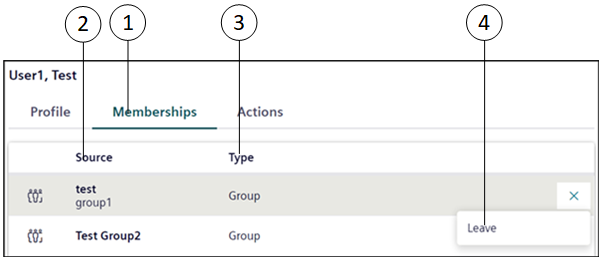
Item | Name | Description |
1 | Memberships | Displays the group membership and current state of the membership of the recipient. |
2 | Source | Displays the groups for which the recipient has a membership. |
3 | Type | Displays type of the group. |
4 | Leave | Removes recipient name and access from the group. |
Recipient Settings
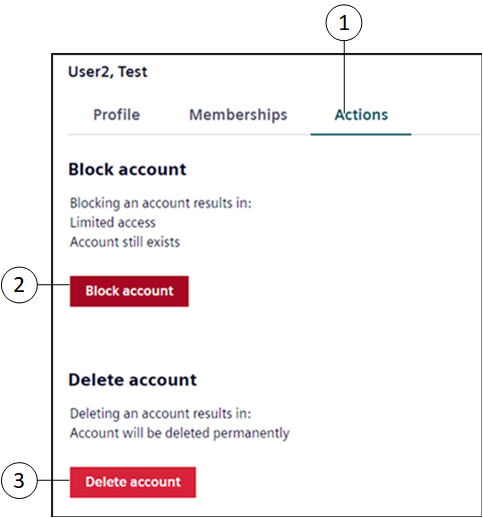
Item | Name | Description |
1 | Actions | Provides the following options:
|
2 | Block account | (Applicable only for Reno Plus users) When the recipient account is blocked, it exists in the list but does not receive any notification. See Block Recipient in Creating and Managing Recipients. |
3 | Delete account | The recipient is permanently removed from the Flex Client. See Delete Recipient in Creating and Managing Recipients. |