Executing an Alarm Printout Step in Assisted Treatment
You are in assisted treatment and the operating procedure includes an alarm printout step that you want to do.
Scroll the steps list, and select the [alarm printout step].
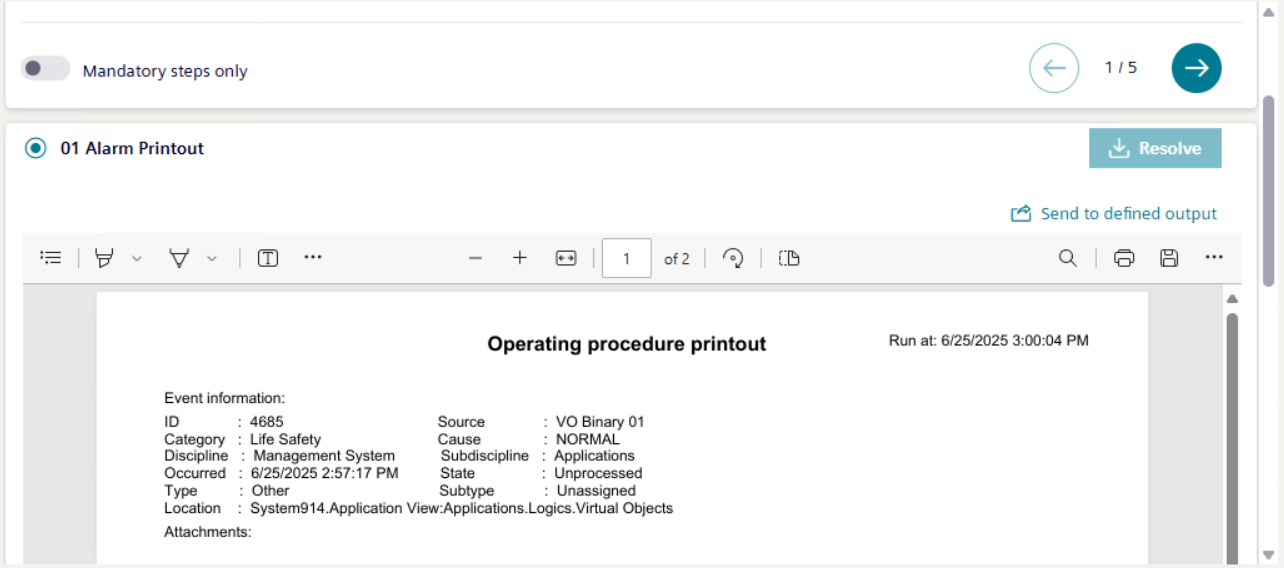
The pre-configured alarm report is displayed in the report area. When you select this step for the first time, a new report is generated. On subsequent selection or if you switch to the other tab and come back to the same step, a new PDF is generated but the data within the PDF output is same as the first creation.
Select Send to defined output.
The output report (PDF/Excel) is routed to a file, email, or printer, depending on the output location defined in the report template. The report output indicates the name of the report definition, the type of format, and the execution timestamp. If the output location is not defined in the report template, then the output files are generated at the default location:[Installation Drive C]:\[Installation Folder]\[Project Name]\ FlexReports.
When the alarm printout step is configured with the Execution Mode as Automatic on Creation (automatically as soon as the triggering event occurs) or Automatic on First Treatment (automatically as soon as the operator starts handling the triggering event) and then: -The report output is generated at the location:[Installation Drive C]:\[GMSProject]\Project Name]\data\Reporting\Reports.
On selecting Send to defined output then the alarm printout output is generated at the location: [Installation Drive C]:\[Installation Folder]\[Project Name]\ FlexReports.
From the report area, you can use the incorporated controls to print to PDF, highlight, zoom in, zoom out, fit to width, page view, or search the content of an alarm printout report.
By default, the report preview is shown as a PDF. -If Excel format is configured as output, then Excel is generated in the configured output folder. -You cannot preview an Excel export. You can only select the corresponding row in the History area and select Send to defined output to download the file locally.
If multiple PDF files are generated for an event that has triggered assisted treatment and the operating procedure includes an alarm printout step, then the history area is displayed showing an entry for the report and sub-entries for all individual PDF files. -You can select the individual PDF files in the History area and the respective PDF gets displayed in the preview area. After the report is generated, displayed, and sent to defined output, only then the step can be marked as resolved.