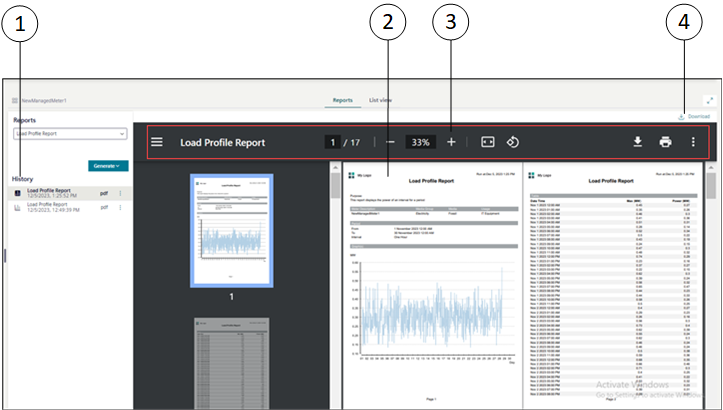
-Displays the history entry that is generated at the execution of each web application rule, indicating the name of the advanced reporting rule, the type of format (pdf, xlsx), and the timestamp of when the report is generated. By default, the newest entry in the History area is selected. - Adjacent to the executed advanced report, select , and then you can Download, Preview, or Delete the corresponding advanced report.
2
Preview area
Displays the preview of the advanced report that is based on the selected formats: - PDF format: PDF report along with timestamp is generated successfully and its preview is displayed in the preview area. - Excel format: The Excel report document along with the timestamp is generated successfully but its preview is not displayed in the preview area. You can download the advanced report locally. - Both formats: The generated report is displayed in the preview area in PDF format. The history group entry can be expanded by showing two sub-entries, one for PDF and one for Excel.
3
Additional Advanced Report incorporated controls (in the Preview Area)
Displays the additional advanced report incorporated controls such as: - Menu: Displays the table of contents that provides an overview of the generated advanced report and helps to locate the specific report details. - Zoom out () Zoom in (): Helps to preview the advanced report details clearly by adjusting the zoom-in and zoom-out levels. - Number of pages: Indicates the number of pages present in the advanced report. - View options: Helps to preview the advanced report in different view options such as Fit to page, and Rotate counterclockwise. - Download: After execution, in the preview area, from the incorporated controls, select Download to download the advanced report locally. Print: Helps to print the PDF by adjusting the print settings. - : Displays different settings such as Two page view, Document properties, and Annotations.
4
Download
Download the advanced report locally by selecting Download from the preview area.
 : Indicates the number of pages present in the advanced report.
 , and Rotate counterclockwise
  .
. : After execution, in the preview area, from the incorporated controls, select Download