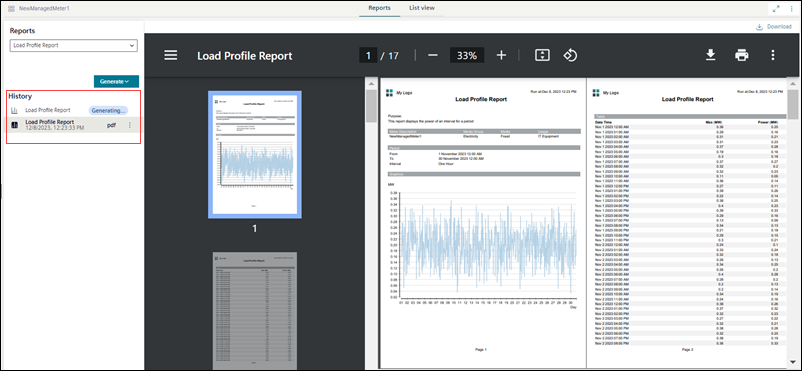
In Application View, select the System Browser object on which web application rules are configured.
Select the web application rule from the Reports drop-down list.
Select Generate and then select one of the formats PDF, Excel, or Both.
In the parameter information section, fill in all the parameters and select Execute.
In the History area, the Generating status appears on the history entries that indicate the advanced report is being executed.
Case 1: If you switch to a different node during the execution process: - Then in the background, the execution process is not interrupted. After the advanced report is executed completely, the Generating status disappears. Case 2: If you switch to a different tab and switch back to the Reports tab then: - The selected web application rule is retained, and in the History area, the state of the following actions is retained such as the selection of the history entry and its preview in the preview area, the history entry is expanded or collapsed, and the position of the history scrollbar. - The parameter information section is not retained.
Each history entry indicates the name of the advanced reporting rule, the type of format, and the timestamp of when the report is generated. Following are the formats in which advanced reports are generated: - PDF: The type of format is pdf. - Excel: The type of format is xlsx. - Both formats: The history entry is a group entry, and the history group entry can be expanded to show two sub-entries, one for PDF and one for Excel.
If you select any rule that has never been executed before, then no entries are available in the History area. Also, an empty page is displayed in the preview area.
If you select any web application rule that is already executed by the user before then, there is at least a single entry available in the History area. The newest entry in the history at the top is selected by default.
When multiple entries are available in the History area then you can scroll through these entries by using the scrollbar and view the history entry.
(Optional) From the History area, you can download the advanced report locally in the following way: - Select the advanced report, and adjacent to the generated advanced report, select and then select Download.