Use System Workspace in Mobile Flex
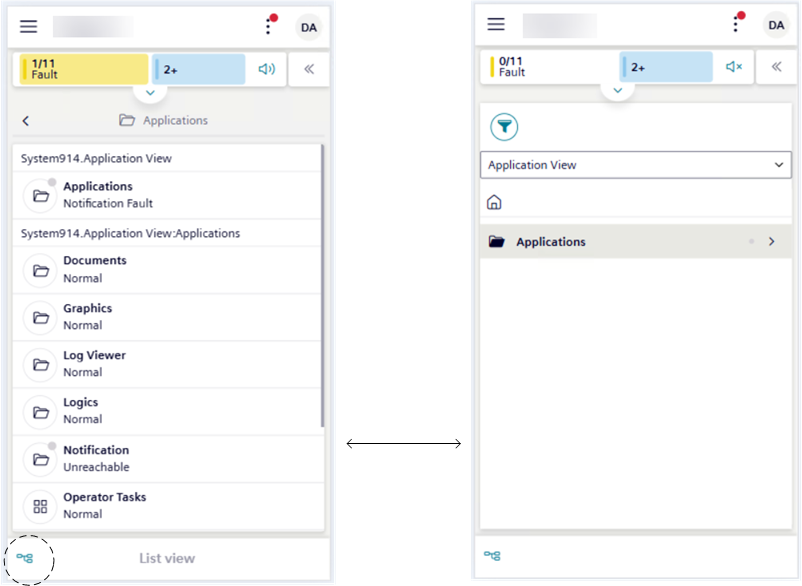
In Flex mobile view, when the System workspace displays on the screen, you can tap to switch between the following screens:
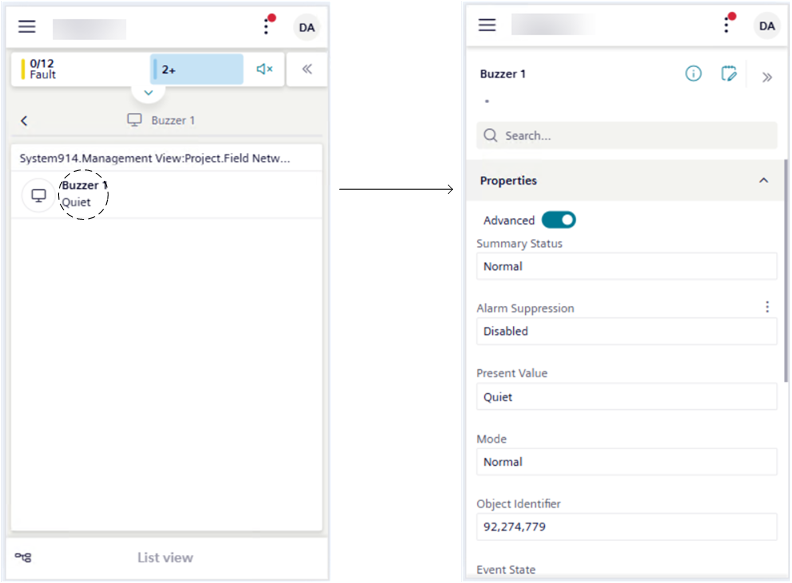
- List view, which provides the heading path for each folder, and the following information for each system object of the connected Desigo CC system: object folder, object name, and value. For more details, see the Flex web/desktop app relevant step-by-step and reference sections.
- System Browser, to browse the hierarchy (object tree) of the connected Desigo CC system. For more details, see the Flex web/desktop app relevant step-by-step and reference sections.
Once an object is selected:
- You can tap to go to the screen that shows the properties of this object and send commands to change the value of the object properties. For more details, see the Flex web/desktop app relevant step-by-step and reference sections.
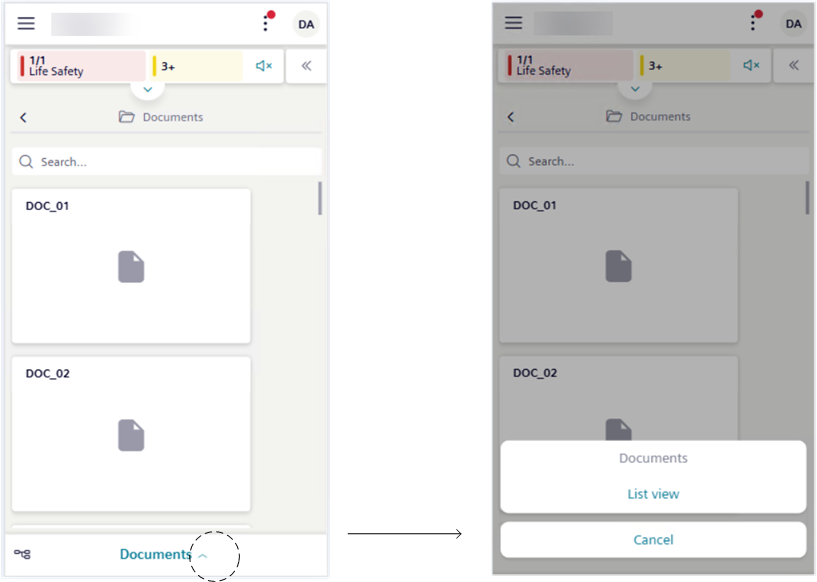
In addition, when the properties of an object displays on the screen you can also work with any other available related item, such report, trend history log, and so on. - Bottom of the screen you can also tap to switch between any of the items available for the selected object (for example, Documents) and List view.