Create a Data Point Table
You can create the Data point table widget displays the live values from the devices for all the selected sources in the tabular view. For background information, see Data Point Table Workspace.
- In the dashboard, select the Data point table from Create widget list.
- Click Next.
- The Create widget page opens.
- Click Add to select the data point.
- Select the device from the list and click Select.
- Select the Data point from the drop-down.
- The Data point table is created and displays the live values form the devices for the selected source in the tabular view.
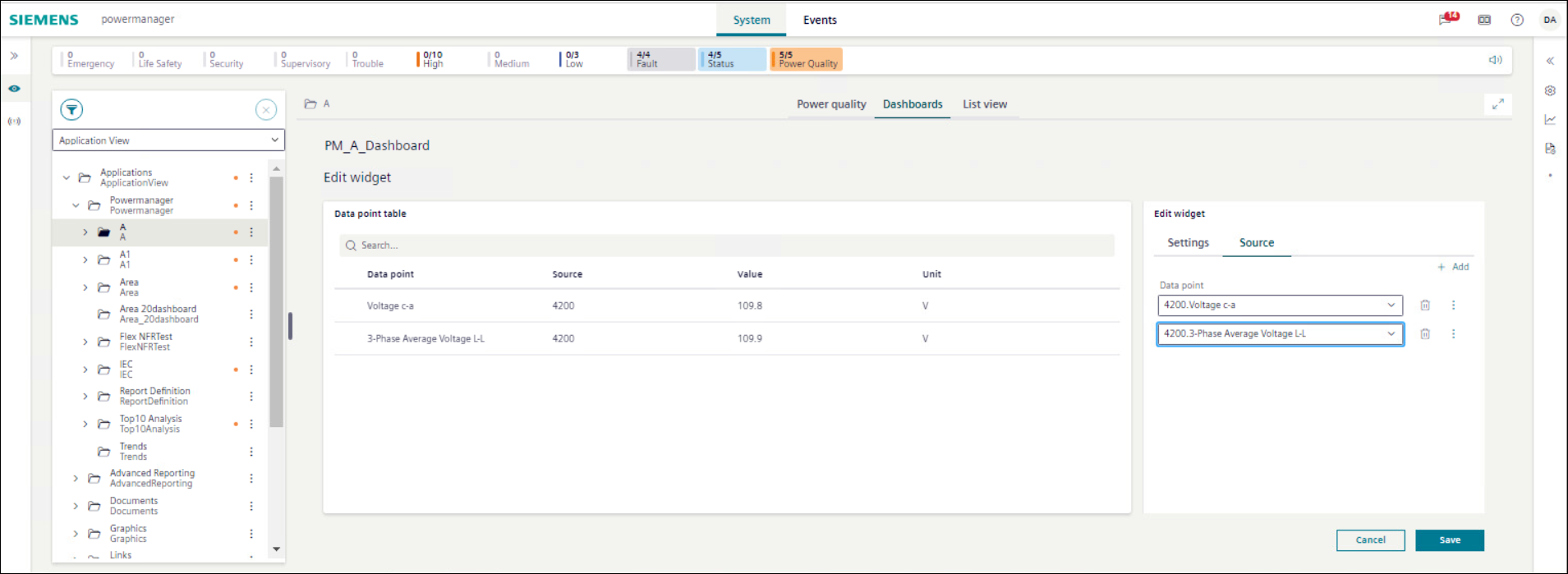
- Repeat the steps 3 to 5 to add additional data points. You can add an unlimited number of data points to the table. Only 10 data points are in a page, with any remaining data points appearing on subsequent pages.
- Click Create to add the widget to the dashboard.
- Click Save.
- The Data point table is created in the dashboard.