Configuring the SNMP Connectivity
You can configure Desigo CC to monitor an SNMP-capable device or an individual property of an SNMP device. This requires first of all configuring an SNMP driver and network that will be used for the monitoring. For background information, see SNMP Connectivity.
- System Manager is in Engineering mode.
- System Browser is in Management View.
- Depending on where you want to add the SNMP driver, select one of the following:
- Project > Management System > Servers > Main Server > Drivers
- Project > Management System > FEPs > [FEP station] > Drivers
NOTE: If the [drivers folder] is not available, to create it select the [FEP station] and click New .
. - In the Object Configurator tab, click New and select New SNMP Driver.
- In the New object dialog box, enter a description and click OK.
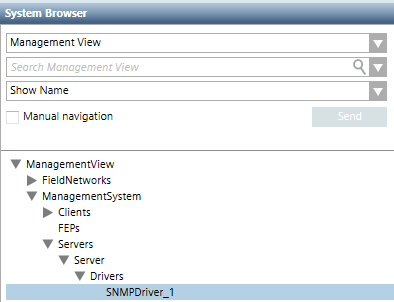
- The newly created SNMP driver is added to System Browser but not started.
- To be able to connect, the driver must be started with either Start or Start Conf…
a. Select the newly created SNMP driver.
In the Extended Operation tab, the Manager Status property of a newly created driver isStopped.
b. In the Extended Operation tab, next to the Manager Status property, click Start.
NOTE: Only for configuration purposes, you can also click Start Conf… to activate the driver without establishing any real connection to the field. 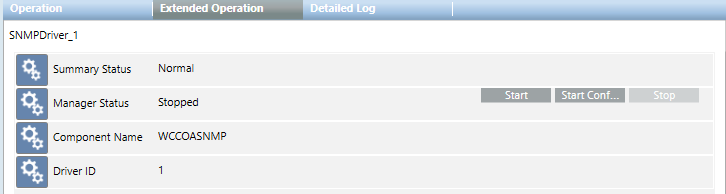
- Create the network:
a. Select Project > Field Networks.
b. In the Object Configurator tab, click New and select New SNMP Network.
c. In the New Object dialog box, enter a name and description, and click OK. - The newly created SNMP network is added to System Browser.
- Associate the driver to network:
a. Select Project > Field Networks > [SNMP network].
b. In the System Management tab, open the Network Settings expander.
c. From the Monitored by driver drop-down list, select the driver.
d. Click Save .
. - Configure the network settings:
a. Set the network UDP port. The port must exactly match the one of the device you want to monitor. See Modifying SNMP Network Settings.
b. If required, modify any other network settings. See Modifying SNMP Network Settings.
c. Depending on the messaging protocol you want to set, proceed to one of the following:
- Setting SNMPv1 or SNMPv2 Protocol
- Setting SNMPv3 Protocol
NOTE: The protocol configuration must exactly match the devices credentials. This means that under the same network you can configure only devices having the same credentials. - Depending on the devices you want to monitor, proceed to one or more of the following:
NOTE: Under each SNMP network, you can create a maximum of 255 device objects. - Import the configuration. See Importing an SNMP Device Configuration.
- If the SNMP driver was running in
Configuration Mode, stop and restart it in full mode for normal operation. See Starting or Stopping the SNMP Driver.